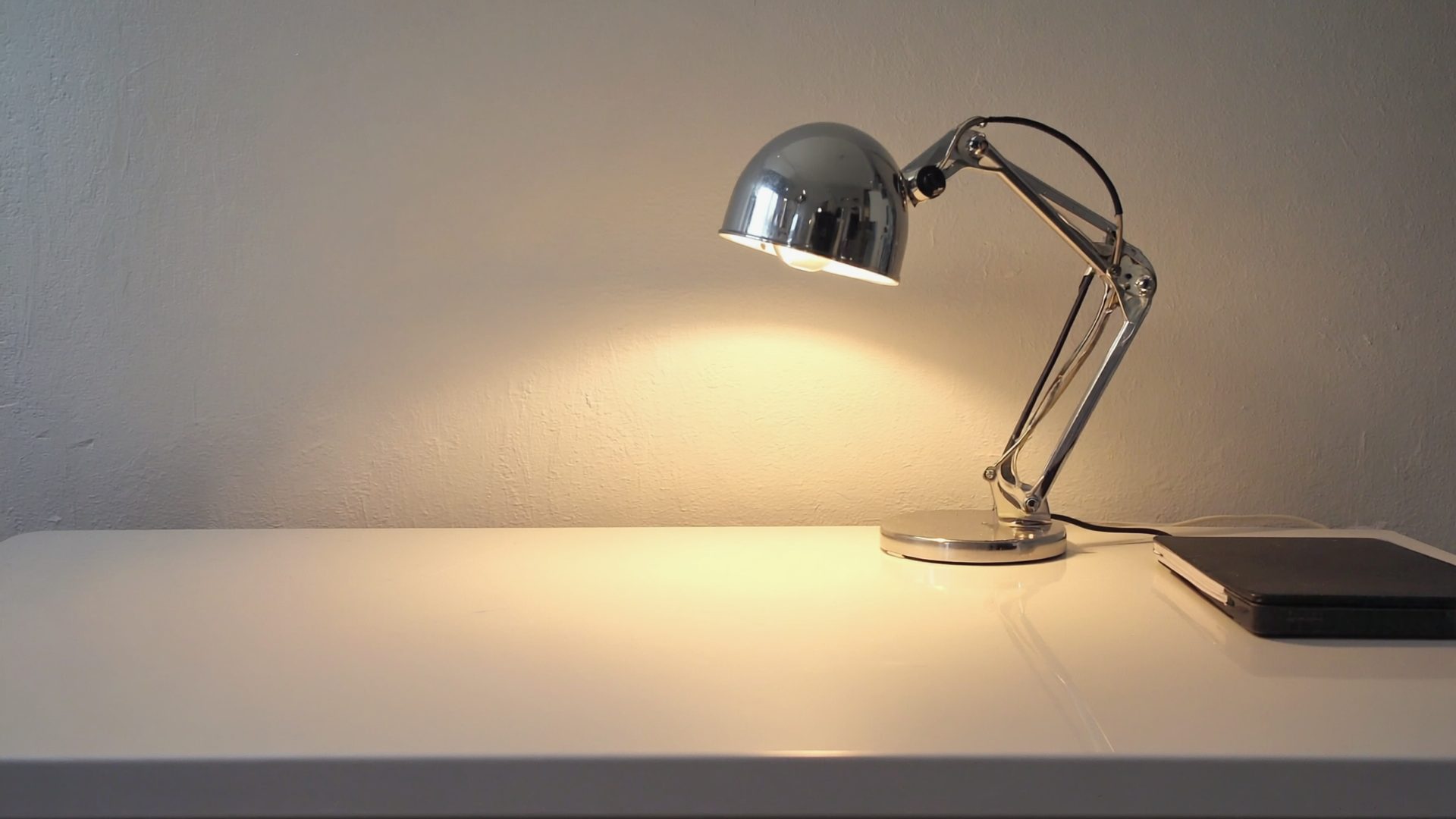
Bad lighting is the most underrated home office problem. It causes eye strain, headaches, fatigue, and poor video call appearance — but people blame the screen, the chair, or their workload instead of the light above their head.
Good office lighting is not complicated. You need the right light in the right places at the right brightness. Here is how to set it up.
Why Office Lighting Matters
Your eyes constantly adjust to the difference between your screen brightness and the surrounding light. When that difference is large — a bright screen in a dark room — your pupils are constantly adjusting, which causes eye strain and fatigue.
The goal: even, comfortable light that reduces the contrast between your screen and your environment. No harsh shadows on your desk. No glare on your screen. No dark corners that make your eyes work harder.
The Three Types of Office Lighting
1. Ambient (General) Lighting
Ambient lighting is the overall room illumination. It sets the base light level so you are not working in a cave with a bright screen.
What to aim for: 300-500 lux at desk level for general office work. You do not need to measure this precisely — if you can comfortably read a printed page without squinting, your ambient light is adequate.
Best sources:
- Overhead ceiling lights (not directly above your screen to avoid glare)
- Floor lamps with diffused shades that bounce light off the ceiling
- Window light (but manage direct sunlight to avoid glare)
Common mistakes:
- Overhead fluorescent lights with no diffuser (harsh, unflattering, and can cause flicker headaches)
- No ambient light at all — relying solely on screen brightness
- Overhead light positioned directly behind you, causing glare on the screen
2. Task Lighting
Task lighting illuminates your specific work area — the desk surface where you read, write, or handle documents. It supplements ambient light for detailed work.
What to aim for: 500-750 lux on the specific area where you need to see detail. The key is directionality — task light should illuminate your work surface without reflecting off your screen.
Best options:
Desk lamps with adjustable arms: The BenQ ScreenBar family is specifically designed for desk use. According to BenQ, the ScreenBar mounts on top of your monitor and illuminates the desk without causing screen glare. The asymmetric optical design directs light downward onto the desk.
Strengths: No desk footprint (mounts on the monitor). No screen glare. Adjustable color temperature and brightness.
Price: Around $110–140 depending on model.
Alternative desk lamps: The LED desk lamps with adjustable color temperature and Ikea TERTIAL provide affordable task lighting with adjustable positioning. Look for lamps with adjustable color temperature (warm to cool) and brightness levels — our roundup of the best desk lamps for video calls and focused work compares the top models.
3. Bias Lighting
Bias lighting is the light behind your monitor. It reduces the contrast between your bright screen and the dark wall behind it, which significantly reduces eye fatigue.
What to aim for: Soft, diffused light behind the monitor at about 10-20% of the screen brightness. The light should be a neutral white (around 6500K) to avoid color perception shifts.
Best options:
LED light strips attached to the back of your monitor. Govee Monitor Backlight offers purpose-built bias lighting strips that attach to the back of your monitor and provide ambient light without being directly visible.
DIY option: Any USB-powered LED strip (6500K, dimmable) attached to the back of your monitor with adhesive. Available from brands like Luminoodle for $15-25.
Why it works: Without bias lighting, your eyes constantly adjust between the bright screen and the dark wall. With bias lighting, the transition is gradual, reducing the adjustment effort.
Color Temperature Explained
Color temperature is measured in Kelvin (K):
- 2700K (warm): Yellowish light. Relaxing, similar to incandescent bulbs. Good for evening work.
- 4000K (neutral): Balanced white. Good all-purpose office light.
- 5000K (cool/daylight): Blue-white light. Mimics daylight. Keeps you alert but can feel harsh in the evening.
- 6500K (cool daylight): Closest to midday sunlight. Standard for color-accurate work (design, photography).
Recommendation: Use 4000K-5000K for your main office lighting during the day. If you work into the evening, choose lights with adjustable color temperature and shift to 3000K-3500K after sunset to reduce blue light exposure before sleep. For evening screen time specifically, a pair of the best blue light glasses adds another layer of protection.
Dealing with Natural Light
Natural light is the best light for a home office — when managed properly.
Window Placement
- Best: Window to the side of your desk (left or right). Provides natural light without glare on the screen.
- Acceptable: Window behind the monitor. May cause glare on the screen during certain times of day.
- Avoid: Window behind you. Creates glare on the screen and backlit appearance on video calls.
Managing Direct Sunlight
Direct sunlight creates harsh shadows and screen glare. Solutions:
- Sheer curtains or blinds: Diffuse sunlight while maintaining natural brightness. Cellular/honeycomb shades are effective at diffusing light evenly.
- Light-filtering roller shades: Reduce brightness without blocking light entirely.
- Anti-glare screen protectors: Reduce screen reflections if you cannot control the light source.
Video Call Lighting
If you take video calls, lighting quality directly affects how professional you appear. For a deeper dive, see our dedicated guide to the best desk lighting for video calls.
The Key Light Approach
Position a light source in front of and slightly above your face. This eliminates shadows and provides even facial illumination.
Best options:
- Ring lights: Elgato Ring Light provides adjustable brightness and color temperature. According to Elgato, it is designed specifically for desk-mount use with camera/webcam setups.
- Panel lights: Elgato Key Light provides a larger, more diffused light source than a ring light. Adjustable via desktop app or Stream Deck.
- Budget option: A desk lamp with a diffuser positioned behind your monitor, angled toward your face.
What to Avoid on Video Calls
- Overhead-only lighting (creates unflattering shadows under eyes and nose)
- Backlighting from a window behind you (makes your face dark)
- Mixed color temperatures (different light sources with different warmth levels create an unnatural look)
Recommended Setup by Budget
Budget ($30-60)
- An adjustable desk lamp ($15-25) positioned to illuminate your work surface
- A USB LED strip ($15-25) behind your monitor for bias lighting
- Use existing overhead lighting as ambient
Mid-Range ($100-200)
- BenQ ScreenBar for task lighting ($110-140)
- Govee Monitor Backlight for bias lighting ($20-40)
- Adjustable color temperature overhead bulbs ($10-20)
Professional ($250-500)
- Elgato Key Light for video calls and ambient ($180–210)
- BenQ ScreenBar Halo for task lighting ($140–170)
- Smart bulbs with tunable color temperature for overhead lighting ($30-50)
- Bias lighting strip ($20-30)
Quick Fixes for Common Problems
| Problem | Fix | Budget Fix |
|---|---|---|
| Eye strain after long sessions | Add bias lighting behind monitor | USB LED strip ($15–25) |
| Screen glare | Reposition monitor, add sheer curtains, or use anti-glare filter | Anti-glare film ($10–20) |
| Dark shadows on video calls | Add front-facing light source at or above eye level | Clip-on ring light ($15–30) |
| Headaches from overhead lights | Switch to LED bulbs, check for flicker (especially older fluorescents) | LED replacement bulbs ($8–15) |
| Drowsiness in the afternoon | Increase color temperature to 5000K+ during work hours | Tunable smart bulb ($12–25) |
| Uneven lighting on dual monitors | Use a wide desk lamp or two bias light strips | Extended LED strip ($20–30) |
2026 Lighting Product Updates
The desk lighting market has seen notable releases in 2026:
- BenQ ScreenBar Halo 2: Updated with improved backlight uniformity and a new wireless controller with preset memory. The auto-dimming sensor is now more responsive to ambient light changes. Around $150–180.
- Elgato Key Light Mini 2: A smaller, more portable version of the Key Light with built-in battery (up to 4 hours). Ideal for laptop users who move between rooms or work from coffee shops. Around $80–100.
- Govee DreamView G1 Pro: Upgraded monitor backlight with camera-based adaptive color sync and Matter/Thread smart home compatibility. Works with 24–35 inch monitors. Around $50–70.
- Philips Hue Lightstrip Plus V4: Now supports Matter natively, making it compatible with all major smart home platforms without a bridge for basic on/off and brightness control. Around $50–70 for a 2-meter strip.
For video call lighting specifically, the trend in 2026 is toward panel lights with built-in diffusers rather than ring lights — panels produce more natural, even illumination without the distinctive ring-shaped catch light in your eyes.
Frequently Asked Questions
What is bias lighting and does it reduce eye strain?
Bias lighting is a soft light placed behind your monitor that reduces the contrast between the bright screen and the dark wall. It significantly reduces eye fatigue by easing the constant pupil adjustment your eyes make. A USB LED strip (6500K, dimmable) behind the monitor costs $15-25 and is one of the most effective eye strain fixes.
What color temperature is best for a home office?
Use 4000K-5000K (neutral to cool white) during daytime work hours. If you work into the evening, shift to 3000K-3500K (warm white) after sunset to reduce blue light exposure before sleep. For color-accurate design or photography work, use 6500K.
How should I position my desk relative to windows?
The best position is with a window to the side of your desk (left or right), which provides natural light without screen glare. Avoid having a window directly behind you, as it causes screen glare and makes your face dark on video calls.
What is the best lighting setup for video calls?
Position a light source in front of and slightly above your face. Panel lights with built-in diffusers produce the most natural illumination. The Elgato Key Light ($180-210) is a popular option. For budget setups, a desk lamp with a diffuser behind the monitor angled toward your face works well.
How many lumens do I need for a home office desk lamp?
For task lighting on a desk surface, aim for 450-800 lumens from your desk lamp. This provides 500-750 lux at the work surface when the lamp is positioned 18-24 inches away. If your room has good ambient lighting, the lower end is sufficient. In a darker room or for detailed work like reading printed documents, go higher.
The Bottom Line
Good office lighting does not require expensive equipment. A $15 bias lighting strip behind your monitor and a properly positioned desk lamp eliminate most lighting-related eye strain. If you take video calls, add a front-facing light source. Manage natural light with window positioning and diffusing shades. The goal is even, comfortable light that lets your eyes relax — not darkness with a bright screen in the middle of it.
Recommended Reading & Gear
- Lighting Design Basics by Mark Karlen — Foundational principles of lighting design including color temperature, lux levels, and task vs ambient lighting.
- The Healthy Programmer by Joe Kutner — Covers eye strain, screen brightness, and workspace environment optimization for long coding sessions.
- BenQ ScreenBar Halo Monitor Light — Mounts on your monitor, illuminates your desk without screen glare, with wireless controller and auto-dimming sensor.
Explore More Reviews
- Best Mattresses for Back Pain Relief on RestWell
- Best AI Coding Agents 2026 on Dev Toolkit
- Best Homeschool Curriculum Kits 2026 on KidGearPro