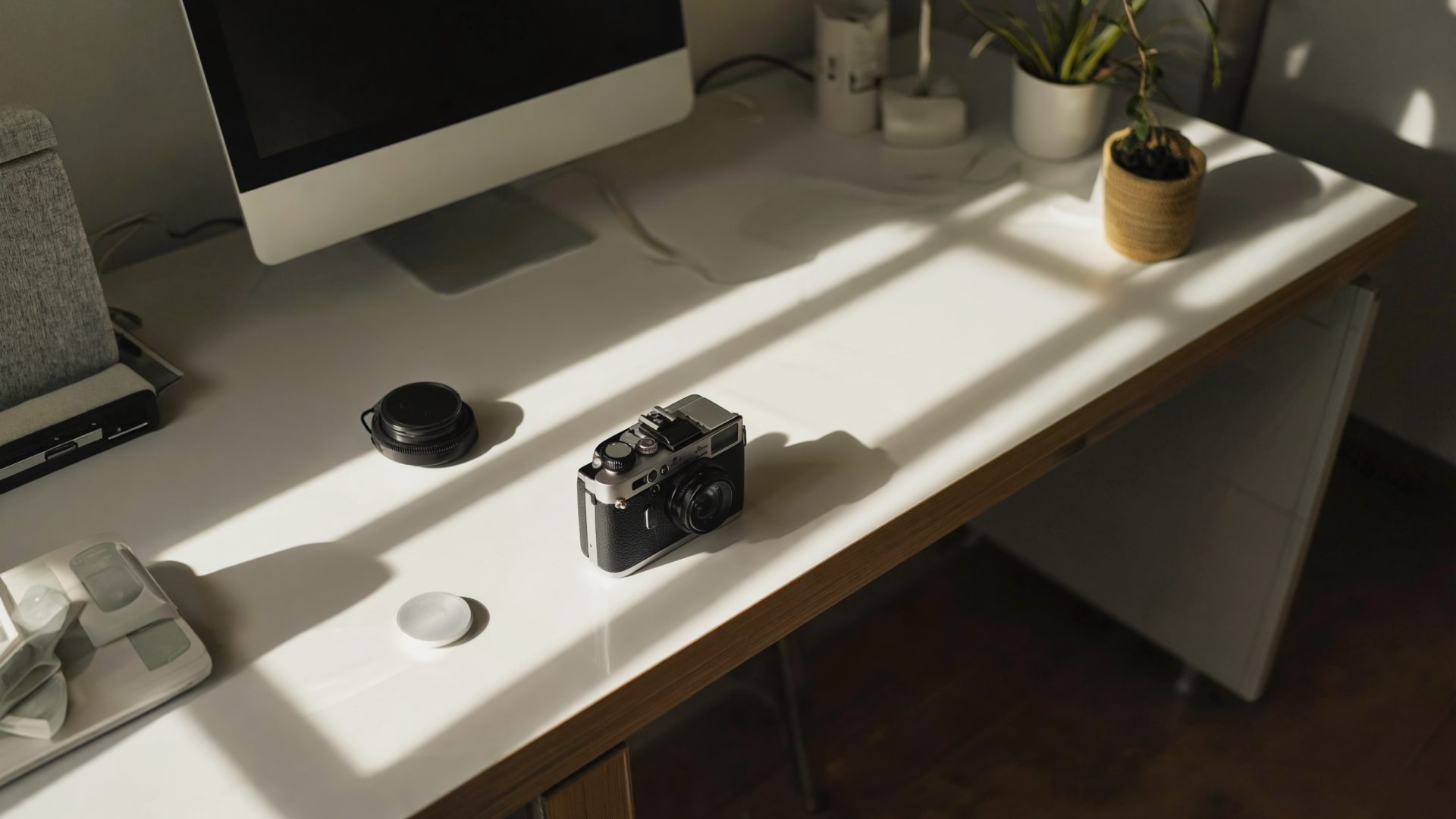
Your laptop webcam is terrible. The 720p sensor, the awful low-light performance, the unflattering up-the-nose angle — everyone on the other end of your video call can tell. For remote workers who spend hours per day on video calls, upgrading the webcam is one of the most visible improvements you can make to your professional presence.
The good news is that webcam technology has improved dramatically. The bad news is that there are hundreds of options ranging from $30 to $300, and specifications alone do not tell you which will look best.
What Matters in a Webcam
Resolution
- 720p: The minimum. Laptop built-in cameras are often 720p. Looks grainy and soft.
- 1080p (Full HD): The sweet spot for most remote workers. Clear, detailed, and sufficient for any video call platform. Most call platforms cap at 1080p anyway.
- 4K (2160p): Overkill for video calls (which compress to 1080p or less) but useful for recording presentations, courses, and content.
Autofocus
Fast, accurate autofocus keeps you sharp whether you are leaning forward to read the screen or sitting back in your chair. Cheap webcams with fixed focus produce a blurry image any time you move outside a narrow focal range.
Low-Light Performance
Most home offices have imperfect lighting. A webcam with a larger sensor and wider aperture captures more light, producing a cleaner image without the grain and noise that plague smaller sensors. Even the best sensor benefits from a dedicated light source — our guide to the best desk lamps for video calls covers the most effective options.
Field of View (FOV)
- 65-75 degrees: Tight framing. Good for headshot-style calls. Less background visible.
- 78-85 degrees: Standard. Shows head and shoulders with some background.
- 90+ degrees: Wide angle. Shows more of you and the room. Good for whiteboard presentations but can be unflattering up close.
For one-on-one calls, a narrower field of view (75-80 degrees) is generally more flattering and professional.
Microphone
Most webcams include built-in microphones. They are almost always worse than a dedicated microphone or even your headset mic. For serious video calls, use a separate microphone or one of the best noise-canceling headsets for WFH. The webcam mic is a backup, not your primary.
Best Webcams for Remote Workers
Logitech Brio 300 — Best Value 1080p
The Logitech Brio 300 provides reliable 1080p video with RightLight technology for automatic light correction. It is the no-fuss option for remote workers who want a significant upgrade from their laptop camera without spending a fortune.
Pros:
- 1080p at 30fps — clear, detailed video
- RightLight technology adjusts exposure for better appearance in varied lighting
- Built-in privacy shutter — slide it closed when not in use
- USB-C connection (adapter included for USB-A)
- Compact, desk-friendly design with adjustable monitor mount
- Available in multiple colors (graphite, off-white, rose)
Cons:
- Fixed focus (no autofocus) — works for most desk distances but not ideal if you move a lot
- No 60fps option
- Basic microphone (adequate but not great)
- 70-degree FOV is slightly narrow
Price: Around $50-70.
Logitech C920s HD Pro — Best All-Around 1080p
The Logitech C920s HD Pro has been a remote work staple for years. It is reliable, produces good video, and includes autofocus — all at a reasonable price.
Pros:
- 1080p at 30fps with autofocus
- Glass lens for better optical quality than plastic lenses
- Dual stereo microphones (better than most webcam mics)
- Privacy shutter included
- Universal compatibility — works with Zoom, Teams, Meet, and every other platform
- 78-degree FOV — flattering framing
Cons:
- USB-A only (no USB-C)
- Low-light performance is adequate but not exceptional
- No 4K option
- Design is getting dated
Price: Around $60-80.
Insta360 Link — Best with Tracking and Gestures
The Insta360 Link is a motorized 4K webcam that physically tracks your movement. Stand up, walk to a whiteboard, and the camera follows you. According to Insta360, it uses AI-powered 3-axis gimbal tracking.
Why it stands out:
- 4K resolution with 1/2" sensor — excellent image quality
- AI tracking follows you as you move around the room
- Gesture controls — hold up your palm to zoom in/out, draw a rectangle in the air for whiteboard mode
- Overhead mode for showing desk work or documents
- DeskView mode shows your desk and face simultaneously
Pros:
- Best tracking technology in a webcam
- Excellent image quality (large sensor)
- Innovative gesture controls
- Multiple viewing modes (portrait, whiteboard, overhead, DeskView)
- USB-C connection
- 79.5-degree FOV with up to 4x digital zoom
Cons:
- Expensive ($230-300)
- The motorized gimbal makes slight noise when tracking
- Larger and heavier than standard webcams
- The tracking can be distracting for viewers if it moves too frequently
- Requires the Insta360 Link Controller app for full feature access
Price: Around $230-300.
Elgato Facecam Pro — Best for Content Creators
The Elgato Facecam Pro is a 4K60 webcam designed for streamers and content creators who demand the best image quality. According to Elgato, it uses a Sony STARVIS 2 sensor for exceptional low-light performance.
Pros:
- 4K at 60fps — the highest frame rate at 4K
- Sony STARVIS 2 sensor for exceptional low-light performance
- Adjustable field of view (75/85/90 degrees) via software
- On-camera image processing (not dependent on CPU)
- Professional-grade image customization (ISO, shutter speed, white balance)
- USB-C connection
Cons:
- Expensive ($250-300)
- No built-in microphone (Elgato assumes content creators use separate mics)
- 4K60 requires USB 3.0 bandwidth — may not work with all USB hubs
- Overkill for standard video calls
- No privacy shutter
Price: Around $250-300.
Opal Tadpole — Best Portable Webcam
The Opal Tadpole is a compact, laptop-mounted webcam for people who work from different locations. According to Opal, it uses the same sensor technology as their flagship C1 camera in a significantly smaller package.
Pros:
- Extremely compact — clips to laptop screens like a flag
- Excellent image quality for the size
- Significantly better than any built-in laptop webcam
- Directional microphone with noise reduction
- USB-C with integrated cable
- Great for travel and co-working
Cons:
- Designed for laptops — less ideal as a monitor-mounted webcam
- No 4K
- More expensive than standard 1080p webcams for what you get
- Limited adjustability compared to traditional webcam mounts
- Newer product with less track record
Price: Around $150-175.
Anker PowerConf C200 — Best Budget Pick
The Anker PowerConf C200 provides solid 2K (1440p) video at a budget price. Anker's AI-powered light correction and noise-reducing dual microphones punch above the price point.
Pros:
- 2K resolution (2560x1440) — higher than 1080p at a budget price
- AI-powered low-light correction
- Dual noise-reducing microphones
- USB-C and USB-A compatible
- Privacy cover included
- 65/78/95 degree adjustable FOV
Cons:
- Autofocus can be slow in some conditions
- Software (AnkerWork app) needed for full feature access
- Build quality is good but not premium
- Slightly larger than some competitors
Price: Around $55-70.
Comparison Table
| Webcam | Resolution | Autofocus | Low Light | FOV | Price |
|---|---|---|---|---|---|
| Logitech Brio 300 | 1080p/30fps | No | Good | 70° | $50–70 |
| Logitech C920s | 1080p/30fps | Yes | Good | 78° | $60–80 |
| Logitech Brio 500 | 1080p/30fps | Yes | Very Good | 90° | $100–130 |
| Insta360 Link 2 | 4K/30fps | Yes | Excellent | 79.5° | $200–270 |
| Elgato Facecam Pro | 4K/60fps | Yes | Excellent | 75–90° | $250–300 |
| Opal Tadpole | 1080p/48fps | Yes | Good | 80° | $150–175 |
| Anker C200 | 2K/30fps | Yes | Good | 65–95° | $55–70 |
2026 Product Updates
Insta360 Link 2: Released in early 2026, the Link 2 replaces the original Link with improved AI tracking, a new 1/1.5" sensor for even better low-light performance, and native integration with Zoom and Teams. Price dropped to $200–270, making it more accessible. The gimbal motor is also quieter than the original.
Logitech Brio 500: Logitech's mid-range option slots between the Brio 300 and the pricier Brio 4K. It adds autofocus, a wider 90° FOV, improved RightLight 4 technology, and Show Mode (tilts down to show your desk). At $100–130, it fills the gap between budget and premium nicely.
Opal Tadpole firmware update: Opal pushed a major firmware update in early 2026 adding 48fps mode and improved noise reduction in the directional microphone. The image processing pipeline was also refined for more natural skin tones.
AI background processing: All major video platforms (Zoom, Teams, Meet) now handle background blur and replacement on the software side, reducing the importance of webcam-level background processing. Focus your budget on sensor quality and low-light performance instead.
Quick Recommendations
- Best value: Anker PowerConf C200 ($55–70) — 2K resolution at a budget price
- Best mid-range: Logitech Brio 500 ($100–130) — autofocus, wide FOV, Show Mode
- Most reliable: Logitech C920s ($60–80) — the proven standard
- Best for presentations: Insta360 Link 2 ($200–270) — improved tracking and whiteboard modes
- Best for content creation: Elgato Facecam Pro ($250–300) — 4K60 with pro controls
- Best for travel: Opal Tadpole ($150–175) — compact laptop-mounted
- Simplest upgrade: Logitech Brio 300 ($50–70) — plug in and look better instantly
Tips for Looking Better on Camera
Regardless of which webcam you choose:
- Camera at eye level: Mount the webcam at the top of your monitor, not below your screen. Looking up into the camera is always more flattering than looking down.
- Light your face, not your background: Position a light source (desk lamp, window, ring light) in front of you and slightly above. Our budget webcam lighting guide shows how to do this without spending much.
- Clean the lens: Webcam lenses accumulate fingerprints and dust. Wipe weekly.
- Check your background: What is behind you matters. A clean, uncluttered background looks professional.
- Frame yourself properly: Head and shoulders in the center of the frame, with a small gap between the top of your head and the edge of the video.
- Test before important calls: Spend 30 seconds checking your video in the meeting app's preview before joining.
A good webcam combined with decent lighting transforms your video call presence from "working from a dark bedroom" to "professional remote office." The investment pays dividends in every meeting, presentation, and client interaction.
Frequently Asked Questions
Do I need a 4K webcam for video calls?
No. Most video call platforms (Zoom, Teams, Meet) compress video to 1080p or less. A 4K webcam is only worth it if you record presentations, courses, or content. For standard video calls, a quality 1080p webcam like the Logitech C920s or Brio 300 is sufficient.
What is the best webcam for low-light home offices?
The Elgato Facecam Pro with its Sony STARVIS 2 sensor offers the best low-light performance. For a more affordable option, the Insta360 Link 2 has a large 1/1.5-inch sensor that performs excellently in dim conditions. Pairing any webcam with a desk lamp or ring light also dramatically improves image quality.
What field of view is best for video calls?
A 75-80 degree field of view is ideal for one-on-one video calls. It frames your head and shoulders with minimal background, which looks professional and flattering. Wider angles (90+ degrees) show more of your room and can be unflattering up close.
Should I use my webcam microphone for calls?
No. Built-in webcam microphones are almost always worse than a dedicated microphone or headset mic. Use a separate microphone or headset for serious video calls. The webcam mic works as a backup but should not be your primary audio source.
Can I use my phone as a webcam instead of buying one?
Yes. Apps like Continuity Camera (Mac/iPhone), Camo, and DroidCam let you use your phone as a webcam. Modern phone cameras often outperform dedicated webcams in image quality. The downsides are that your phone is tied up during calls, battery drain is significant, and you need a stable mount. A dedicated webcam is more convenient for daily use, but your phone works well as a temporary or backup solution.
Recommended Reading & Gear
- Video Call Confidence by Molly Bloom — Practical guide to looking and sounding professional on every video call.
- Remote: Office Not Required by Jason Fried — The foundational book on making remote work actually work for you and your team.
- Elgato Ring Light — The single best upgrade to pair with any webcam. Even a $50 webcam looks great with proper lighting.
Explore More Reviews
- Best USB-C Docking Stations for Mac
- Best AI Meeting Assistants 2026 on AI Tools Review
- AI Meeting Summarizers: Do They Actually Work? on AI Tools Review
- AI Tools for Video Production on Dev Tools