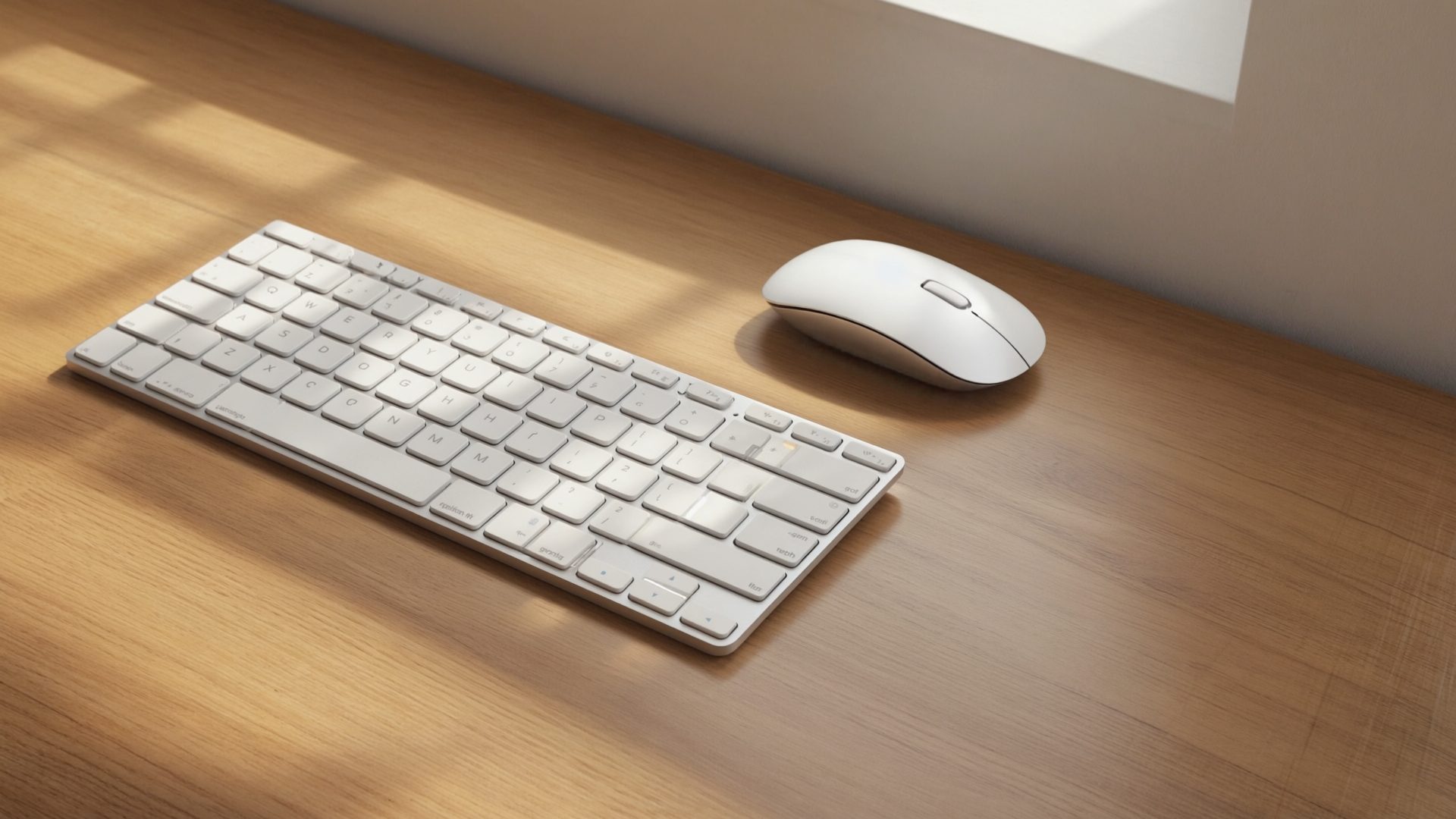
Programmers type all day. The keyboard is arguably your most important tool. Yet many developers use whatever came with their computer or a $20 membrane keyboard from the supply closet. A mechanical keyboard will not make you a better programmer, but it will make the 8+ hours you spend typing significantly more comfortable.
Here is what matters when choosing a mechanical keyboard for programming, without the keyboard-enthusiast jargon overload.
Why Mechanical Keyboards for Programming
Tactile Feedback
Mechanical switches provide a physical sensation when a keypress registers. You know you pressed the key without bottoming out (slamming the key to the base). This reduces finger fatigue over long sessions.
Consistency
Every keypress on a mechanical keyboard feels the same. Membrane keyboards develop mushy spots over time as the rubber domes wear unevenly.
Durability
Most mechanical switches are rated for 50-100 million keypresses. A typical membrane keyboard lasts 5-10 million. For someone typing 8+ hours daily, that longevity matters.
Customization
Key switches, keycaps, layouts, and programmable layers let you tailor the keyboard to your exact preferences. Remap keys, create macros, or build custom layers for different applications.
Switch Types That Matter for Programming
Linear Switches (Red, Black)
Linear switches press straight down with no bump or click. The keypress is smooth from top to bottom.
Good for programming if: You prefer a quiet, smooth typing experience and do not need tactile feedback to confirm keypresses.
Popular choice: Cherry MX Red or Gateron Red. Light actuation force (45g), smooth travel.
Tactile Switches (Brown, Clear)
Tactile switches have a noticeable bump partway through the keypress. You feel the actuation point without hearing a loud click.
Good for programming if: You want to feel each keypress register without the noise of clicky switches. This is the most popular choice for office and home office use.
Popular choice: Cherry MX Brown (light tactile bump, 45g) or Gateron Brown. For a more pronounced bump: Cherry MX Clear (65g).
Clicky Switches (Blue, Green)
Clicky switches produce an audible click at the actuation point. Satisfying for the typist, potentially annoying for everyone within earshot.
Good for programming if: You work alone and love the typewriter-like sound. Not recommended for shared spaces or video calls — though a good pair of noise-canceling headphones can keep clicky switches from disrupting your calls.
Popular choice: Cherry MX Blue (tactile and clicky, 50g).
Hall Effect / Magnetic Switches (2025-2026)
Hall effect switches use magnets instead of physical contact points. The key benefit for programmers: adjustable actuation points. Set a lighter actuation for rapid typing or a deeper actuation to prevent accidental keypresses.
Good for programming if: You want to fine-tune exactly how much key travel triggers a keypress. Also offers "rapid trigger" — the key re-activates as soon as you release slightly, useful for fast repeated inputs.
Popular choice: Wooting Lekker switches (available in Wooting keyboards) or Gateron Magnetic Jade switches (Keychron Q HE series).
Consideration: More expensive than traditional mechanical. Not all programmers need adjustable actuation — it is most valuable if you switch between typing styles or want to experiment.
The Programmer's Choice
Most programmers who discuss keyboard preferences online gravitate toward tactile, non-clicky switches — specifically Cherry MX Brown or equivalents. The tactile bump confirms keypresses without producing noise during calls or in shared spaces. But this is personal preference. Try before you commit if possible.
Keyboard Layouts
Full Size (104/108 keys)
Includes the number pad, function row, arrow keys, and navigation cluster. Familiar but takes up significant desk space and forces your mouse hand far to the right.
For programming: The number pad is rarely used in programming. The desk space it consumes pushes your mouse into an ergonomically poor position — a problem an ergonomic mouse for all-day coding helps offset.
Tenkeyless / TKL (87 keys)
Removes the number pad, keeping everything else. This is the most popular layout for programmers.
For programming: You keep all the keys you use (function row, arrows, Home/End/PgUp/PgDn) while reclaiming desk space and bringing your mouse closer.
75% (84 keys)
Compresses the TKL layout by placing function keys, arrows, and navigation keys closer together. Compact without losing essential keys.
For programming: Everything you need in a smaller footprint. The compressed layout takes a day or two to adjust to.
65% (68 keys)
Removes the function row entirely. Function keys are accessed via a Fn layer (Fn+1 = F1, Fn+2 = F2, etc.). Keeps arrow keys and a few navigation keys.
For programming: Controversial. Developers who use F5 for debugging, F12 for go-to-definition, or function keys in terminal multiplexers may find the Fn layer friction annoying. Others adapt quickly and love the compact size.
60% (61 keys)
Removes the function row, arrow keys, and navigation cluster. Everything is accessible through layers.
For programming: Requires significant adaptation. Arrow keys via Fn+HJKL (Vim-style) works for Vim users. Others may find it frustrating for code navigation.
Split and Ergonomic Layouts
Split keyboards place each hand's keys on a separate unit, allowing you to position them at shoulder width. This is the most ergonomically sound option for all-day typing.
Notable options: Kinesis Advantage360, ZSA Voyager, ZSA Moonlander, Dygma Defy.
For programming: If you have wrist or shoulder issues from typing, a split keyboard can be transformative. The learning curve is real — expect 2-4 weeks to reach your previous speed. If a full split is too much, our roundup of ergonomic keyboards for all-day typing covers gentler alternatives.
Recommended Keyboards Compared
| Keyboard | Price (2026) | Layout | Switch Type | Hot-Swap | Wireless | Best For |
|---|---|---|---|---|---|---|
| Keychron Q1 Max | $200-220 | 75% | Mechanical (many options) | Yes | Yes (tri-mode) | Best overall for programmers |
| Keychron Q3 Max | $210-230 | TKL | Mechanical (many options) | Yes | Yes (tri-mode) | TKL lovers wanting wireless |
| Wooting 80HE | $180-200 | TKL | Hall effect (Lekker) | Yes | No (wired) | Adjustable actuation enthusiasts |
| Leopold FC750R | $110-140 | TKL | Cherry MX | No | No (wired) | No-nonsense typing purists |
| HHKB Professional | $250-300 | 60% | Topre | No | Yes (Hybrid-Type S) | Unix/Linux developers |
| Royal Kludge RK84 | $55-75 | 75% | Various mechanical | Yes | Yes (tri-mode) | Budget entry point |
| ZSA Voyager | $365 | Split low-profile | Choc V2 | Yes | No (wired) | Ergonomic + portable split |
| ZSA Moonlander | $399 | Split columnar | Various mechanical | Yes | No (wired) | Full-size split ergonomic |
Detailed Recommendations
Keychron Q Max Series — $200-230
The 2025-2026 Q Max series adds tri-mode wireless (Bluetooth, 2.4GHz, USB-C) to the already excellent Q series. Aluminum construction, hot-swappable switches, gasket mount, and QMK/VIA firmware for full programmability.
Why programmers like it: QMK firmware lets you remap every key and create complex layers. Hot-swap means you can try different switches without buying a new keyboard. Tri-mode wireless means one keyboard for your desktop, laptop, and tablet. Available in 75% (Q1 Max), TKL (Q3 Max), and full-size (Q5 Max) layouts.
What changed from the Q series: Added wireless with 1000Hz polling rate on 2.4GHz (matches wired latency). Battery lasts 100+ hours with backlighting off.
Wooting 80HE — $180-200
The Wooting 80HE is a TKL keyboard with hall effect (Lekker) switches. The standout feature is per-key adjustable actuation from 0.1mm to 4.0mm — you control exactly how much travel triggers a keypress.
Why programmers like it: Rapid trigger for fast repeated inputs. Set different actuation depths for different keys (lighter for frequently-used keys, deeper for accidental-press-prone keys). The Wootility software is excellent and cross-platform.
Considerations: Wired only. The hall effect feel is different from traditional mechanical — smoother, closer to linear. Try before committing if you prefer tactile bumps.
Leopold FC750R — $110-140
Leopold keyboards are known for build quality and out-of-the-box excellence. No RGB, no software, no wireless — just exceptional typing feel and durability.
Why programmers like it: PBT keycaps (do not develop shine), double-shot legends (will not fade), excellent stock stabilizers. It is the keyboard for people who want to type well and not think about their keyboard.
Layout: TKL (87 keys).
HHKB Professional — $250-300
The Happy Hacking Keyboard is a cult classic among Unix/Linux programmers. The layout places Control where Caps Lock normally is (where it was on Unix workstations) and uses Topre switches for a unique, satisfying feel.
Why programmers like it: The 60-ish% layout with Unix-oriented key placement. Topre switches feel like a refined rubber dome — smoother than mechanical but with tactile feedback. The Hybrid-Type S model adds Bluetooth connectivity and silenced switches.
Considerations: The layout is unconventional. The price is steep. You either love it or do not understand why anyone would pay that much.
Royal Kludge RK84 — $55-75
The RK84 is a 75% wireless mechanical keyboard at a budget price. Tri-mode connectivity (Bluetooth, 2.4GHz wireless, and wired), hot-swappable switches, and RGB.
Why programmers like it: An affordable entry point into mechanical keyboards with a programming-friendly layout. Bluetooth lets you connect to multiple devices.
Considerations: Build quality reflects the price — functional but not premium. Software for customization is Windows-only.
ZSA Voyager — $365
The Voyager is ZSA's 2024-2025 split keyboard — thinner and more portable than the Moonlander. Low-profile Choc V2 switches, a slim profile, and the same Oryx web configurator. Weighs under 200g per half.
Why programmers like it: Travel-friendly split ergonomic. Low-profile keys reduce wrist extension. Fully programmable with layers, macros, and tap-dance keys via the Oryx configurator.
Considerations: Low-profile switches feel different from standard mechanical — less travel, less tactile bump. The 52-key layout requires heavy layer use.
ZSA Moonlander — $399
The Moonlander is a split, columnar-stagger keyboard with hot-swappable switches and a visual configuration tool (Oryx). Each half positions independently at shoulder width.
Why programmers like it: Fully programmable via a web-based configurator. The split design eliminates shoulder hunching. Thumb clusters provide easy access to modifiers.
Considerations: The learning curve is steep — expect significant productivity loss for 2-4 weeks. The price is high. But developers who make the switch rarely go back.
Tips for Choosing
- Start with a TKL or 75% layout: You get everything you need without the number pad taking up space
- Try tactile switches first: Cherry MX Brown or equivalents are the safe starting point
- Hot-swap matters: Being able to try different switches without buying a new keyboard saves money long-term
- Budget $80-175 for your first mechanical keyboard: This range gets you quality without overspending before you know your preferences
- Consider wireless if you switch devices: Tri-mode keyboards (Bluetooth + 2.4GHz + wired) let you pair with multiple machines
- Consider the switch to your daily life: If you are on calls frequently, avoid clicky switches
The Bottom Line
For most programmers buying their first mechanical keyboard in 2026, a Keychron Q Max series in TKL or 75% layout with Brown switches is the best starting point. It is well-built, fully customizable, hot-swappable, wireless, and priced fairly.
If budget is the priority, the RK84 gets you into mechanical keyboards for under $75. If you want cutting-edge switch technology, the Wooting 80HE offers hall effect switches with adjustable actuation at a reasonable price. If ergonomics is the priority, the ZSA Voyager (portable) or Moonlander (full-featured) are the split keyboard endgames for many developers.
Your keyboard is the tool you touch most. Investing in a good one is investing in your comfort and productivity for years.
Frequently Asked Questions
What is the best mechanical keyboard switch for programming?
Most programmers prefer tactile, non-clicky switches like Cherry MX Brown or equivalents. The tactile bump confirms keypresses without producing noise during calls or in shared spaces. Linear switches (Cherry MX Red) are a good alternative if you prefer a quieter, smoother typing experience.
Is a 60% keyboard good for programming?
A 60% keyboard can work for programming but requires significant adaptation. Arrow keys and function keys are accessed through layers, which adds friction for tasks like debugging (F5), go-to-definition (F12), and code navigation. Most programmers prefer 75% or TKL layouts that keep these keys accessible.
Are hall effect keyboards worth it for programming?
Hall effect keyboards like the Wooting 80HE offer adjustable actuation points, letting you set how much key travel triggers a keypress. This is useful if you want to fine-tune your typing experience or switch between typing styles. However, most programmers do not need adjustable actuation — traditional mechanical switches work well for coding.
How much should I spend on a programming keyboard?
Budget $80-175 for a quality first mechanical keyboard. The Royal Kludge RK84 ($55-75) is a solid budget entry point. The Keychron Q Max series ($200-230) is the best mid-range option with full programmability and wireless. Spending over $250 gets you premium options like the HHKB or split ergonomic keyboards.
Do I need a split keyboard for programming?
You do not need a split keyboard, but if you have wrist or shoulder issues from typing, a split keyboard like the ZSA Voyager or Moonlander can be transformative. Expect a 2-4 week learning curve to reach your previous typing speed. Most developers who make the switch rarely go back.
Recommended Reading & Gear
- The Pragmatic Programmer by Hunt & Thomas — The classic guide to developer craft, including how your tools shape your workflow.
- Coders at Work by Peter Seibel — Interviews with legendary programmers on their tools, habits, and typing workflows.
- Keychron Q1 Max Wireless Mechanical Keyboard — Top pick for programmers: 75% layout, hot-swap, QMK/VIA, tri-mode wireless.
Explore More Reviews
- Best Wireless Keyboard & Mouse Combos
- Ergonomic Mouse Options for All-Day Coding
- Best Developer Productivity Tools 2026 on AIToolPro
- Best AI Code Assistants 2026 on AIToolPro
- Best VS Code Extensions 2026 on Dev Toolkit
- Best Terminal Emulators 2026 on Dev Toolkit